
Formerly CmpfsCheck
Shrink files without deleting them.
Free to use.
Apps and Xcode keep reading your files just as before. You can undo compression at any time.
CmpfsCheck is now ShrinkCheck, and it has been free since v1.0.0. If you use the old app
Signed with an Apple Developer ID and notarized · macOS 15 or later / Apple Silicon · SHA-256: 6cd0e227197c76a08fab1fc424bfd9e91d756aefa135d3b939da680a9064d27b
With v1.0.0, CmpfsCheck has been renamed ShrinkCheck, and it is now free.
If you use the old app (CmpfsCheck 0.9.x), please switch to ShrinkCheck. Starting January 1, 2027, the old app can no longer compress new files (decompressing and browsing compressed files keep working).
CmpfsCheck.app in your Applications folder to the Trash. (If the old app is still there, ShrinkCheck will let you know when it starts. It never deletes the app for you.)If you run automatic compression from cron or launchd, update the command.
# old
open -a CmpfsCheck --args --auto-recompress
# new
open -a ShrinkCheck --args --auto-recompress
For the recommended form that also returns the exit code, see Command Line Usage.
Files you already compressed keep working. There is nothing to redo.
The trial records the old app kept are deleted automatically the first time you open ShrinkCheck.
APFS in macOS includes a transparent compression feature called decmpfs. Apple uses it for system files, but there is no official tool for everyone else. ShrinkCheck shrinks old files and folders you rarely change, and leaves them exactly where they are. It does not run in the background. It works only when you ask it to.
ShrinkCheck puts the safety of your files above everything else.
Compression writes to a separate place and then swaps the result in, so a crash or interruption never damages the original. Right after compressing, ShrinkCheck reads the file back and compares it with the original. If they differ, the original stays as it was.
The first time you launch ShrinkCheck after a macOS or app update, it verifies that compression and decompression work correctly, using test files the app creates itself. It takes a few seconds. Your files are not touched.
New compression stays off until the self-check passes. If it does not pass, ShrinkCheck tells you why and what to do.
If a problem is found after a release, compressing new files can be suspended for the affected versions. Decompression and browsing always keep working.
A stop notice appears at the top of the window, along with what to do next.
To check for stop notices, ShrinkCheck only downloads a public file (status.json) that lists the versions to suspend and the latest version number. It does this at launch, about every 24 hours while running, and before an automatic recompression started from the command line.
The app sends nothing about you or your Mac. No identifiers, no app or OS version, and no file information are included in the request, and no cookies are used.
You can turn this check off in Settings. If you do, you will not receive stop notices or news of new versions. Compression and decompression keep working without a connection.
For details, see the Privacy Policy.
The main screens. Click an image to enlarge it.
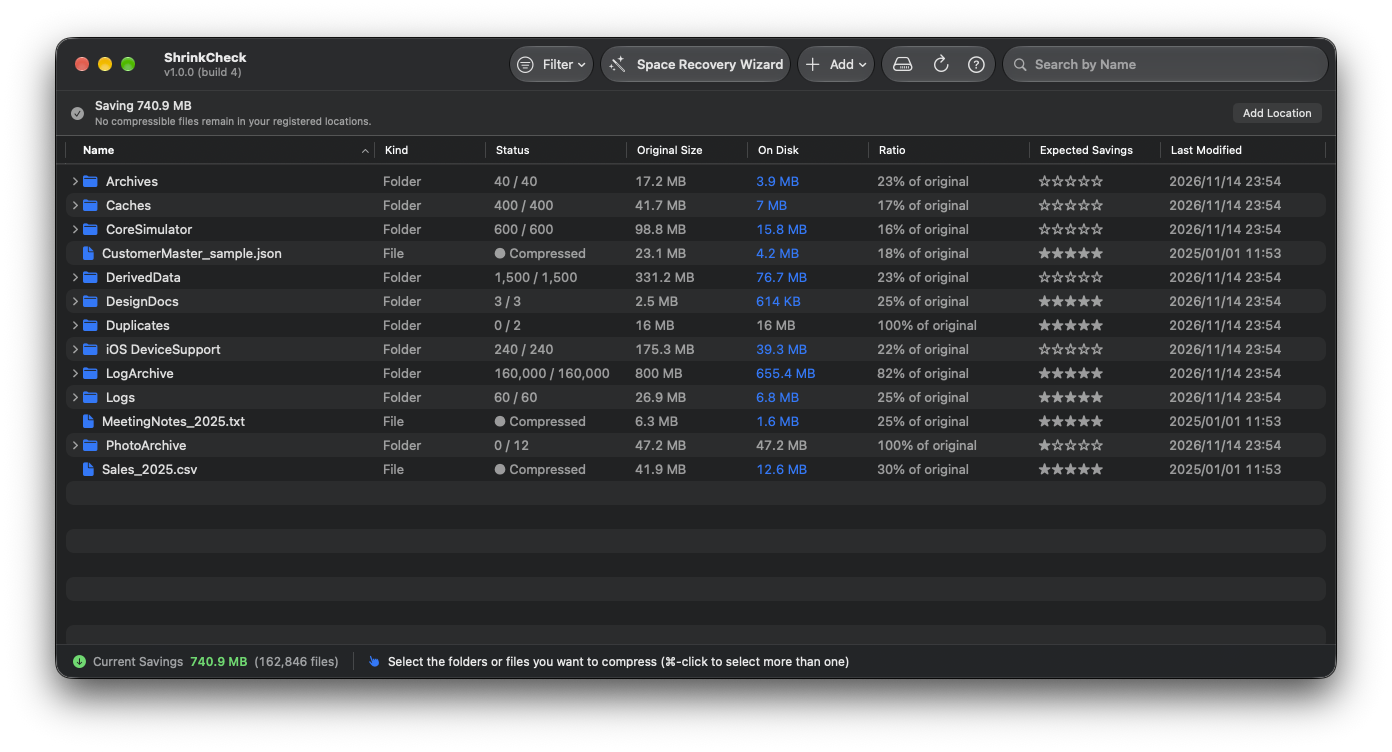
See each item's status, original size, actual size on disk, and savings (shown as, for example, "25% of original") at a glance. The guidance bar at the top shows the one thing to do next. A clock badge marks folders that have not been checked yet.
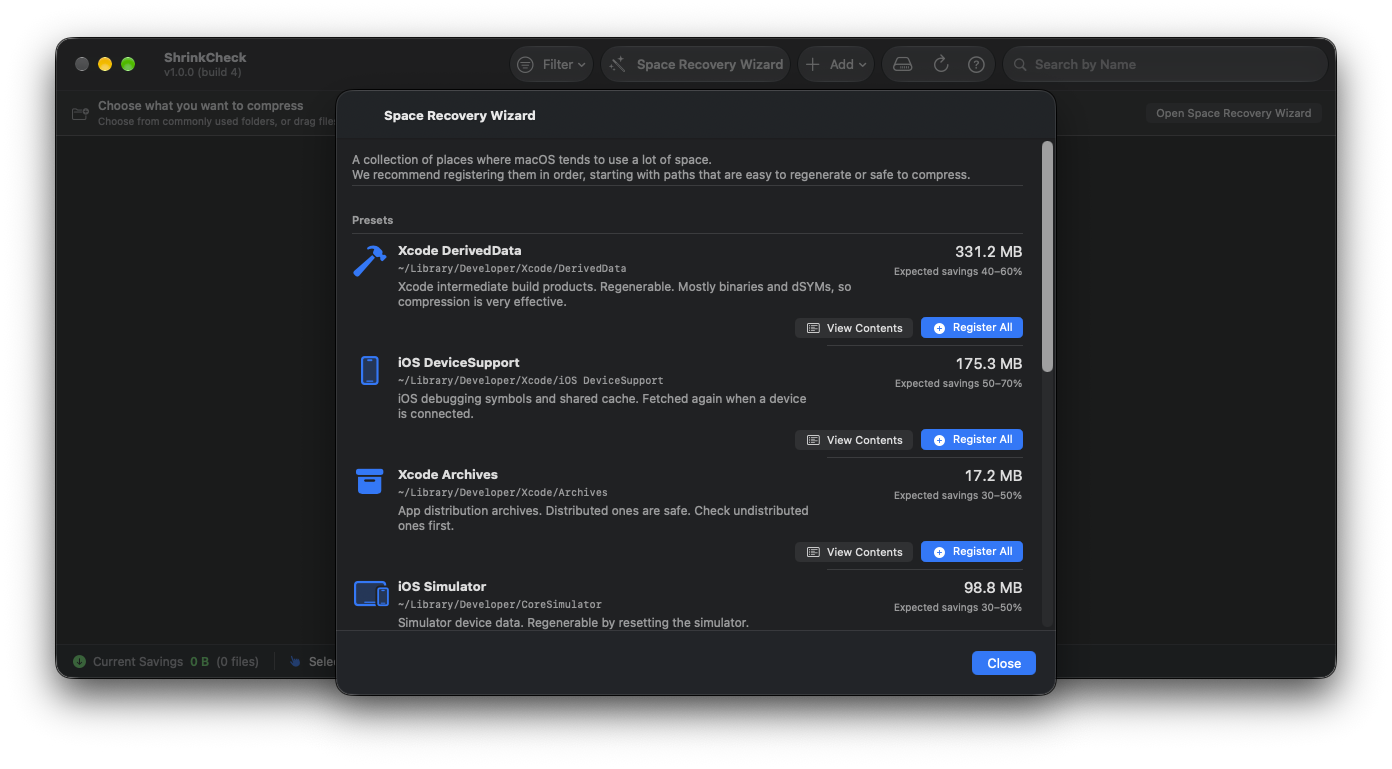
Common locations such as DerivedData and Archives are ready as suggestions. ShrinkCheck estimates how much each could shrink before you compress. Open it any time from the toolbar.
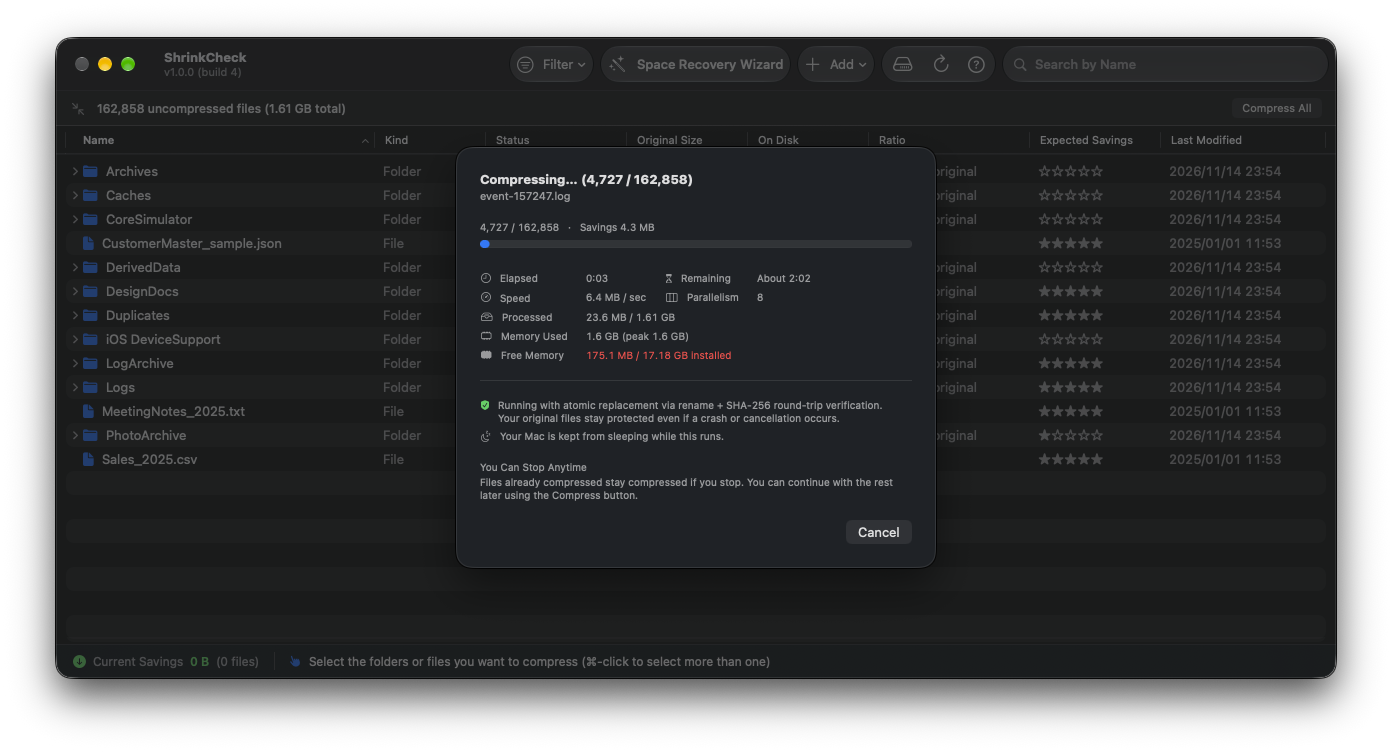
Shows elapsed time, time remaining, and the file being processed. You can cancel at any time.
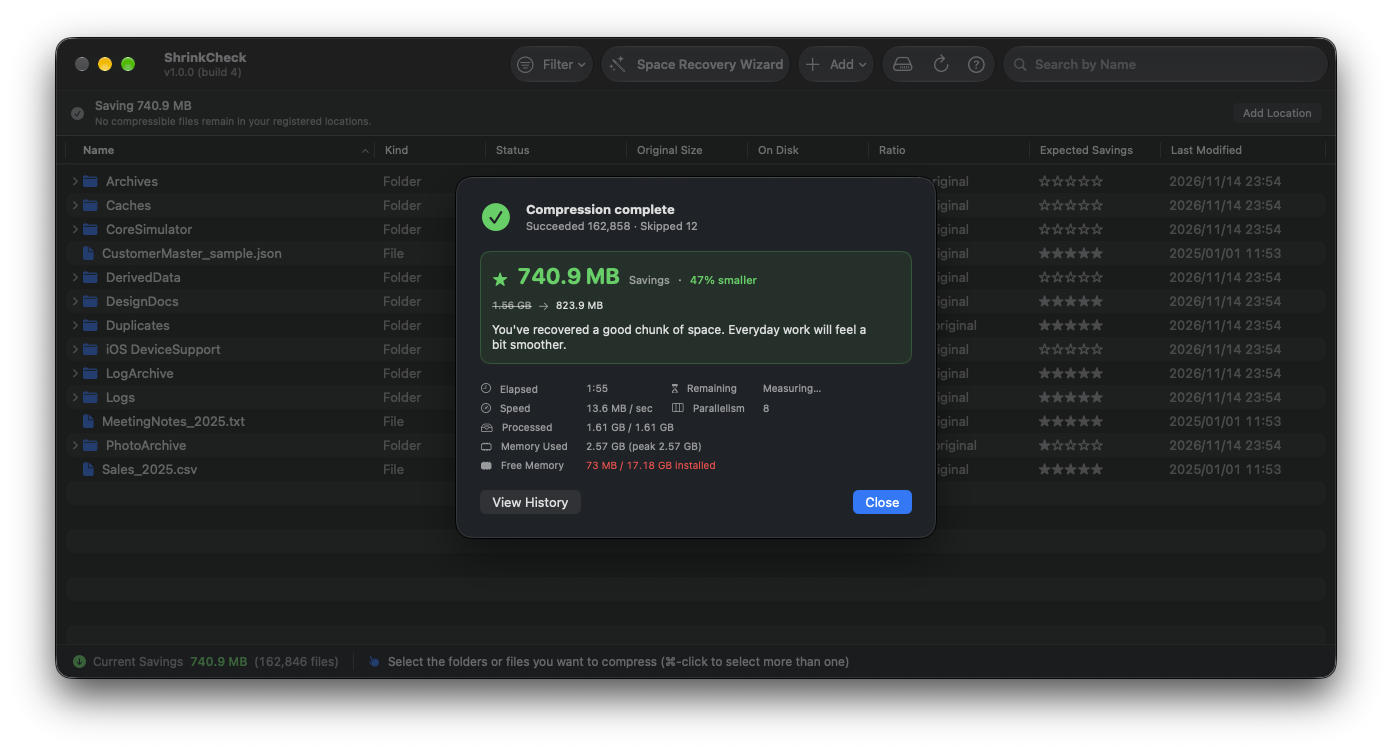
When it finishes, the space you saved is shown in large type.
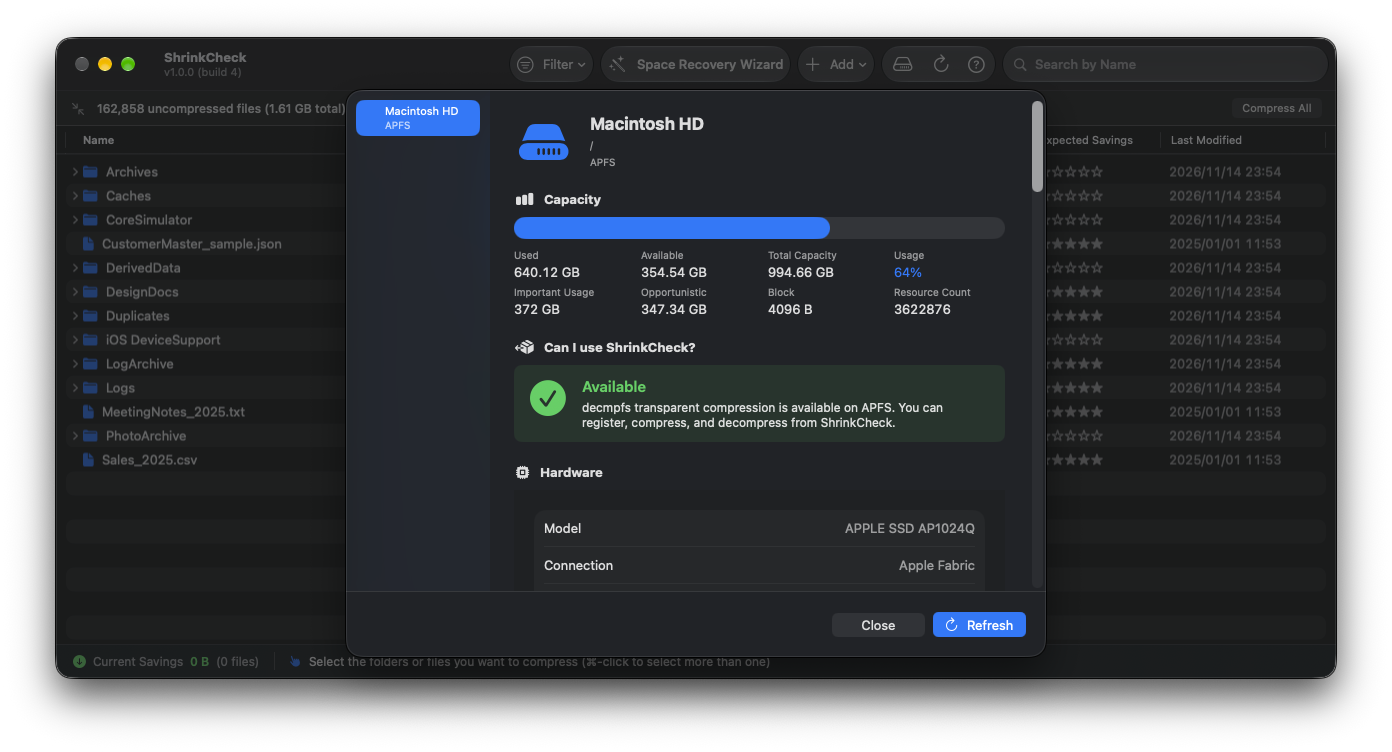
See mounted volumes, whether each supports transparent compression, and free space in one view.
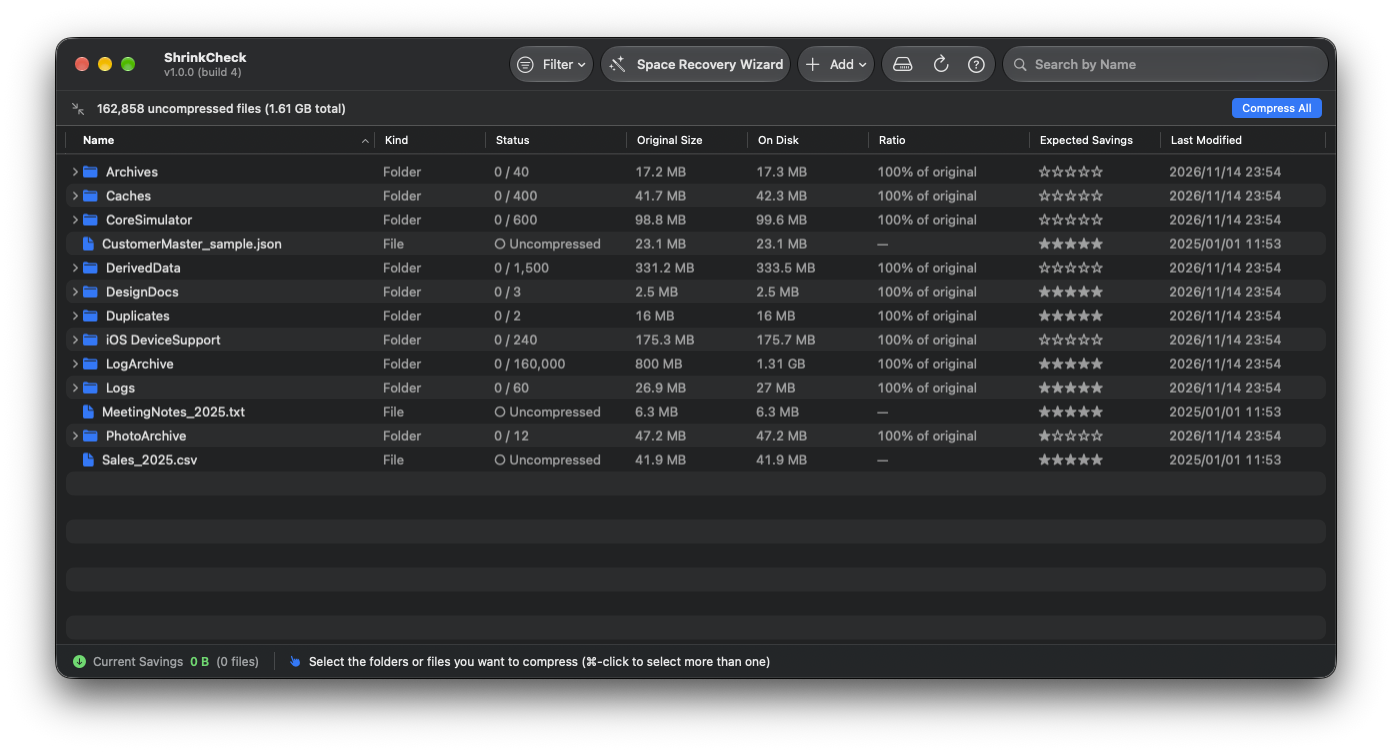
Right after you add items, everything is uncompressed. Click Compress All in the guidance bar to compress them together.
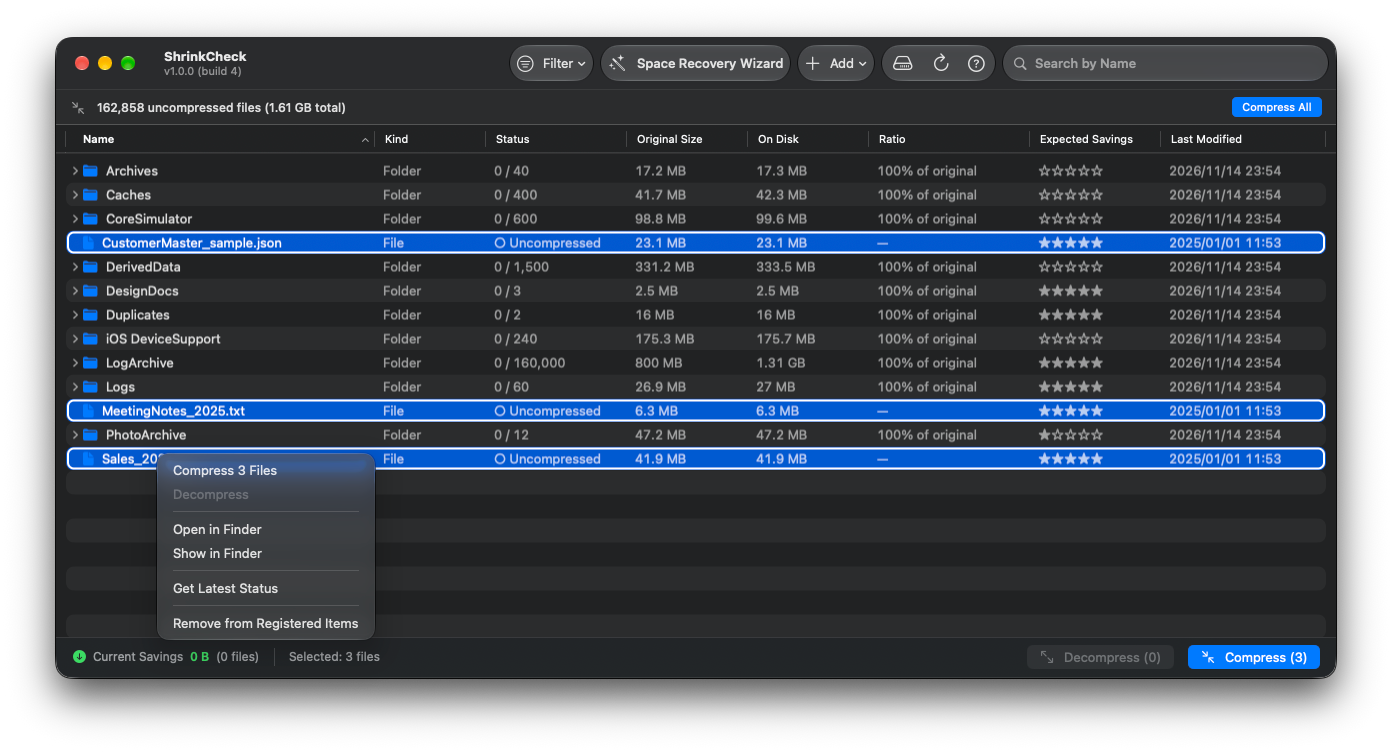
To compress only some items, right-click them or use the bar at the bottom. Until you select something, the bar tells you how to choose.
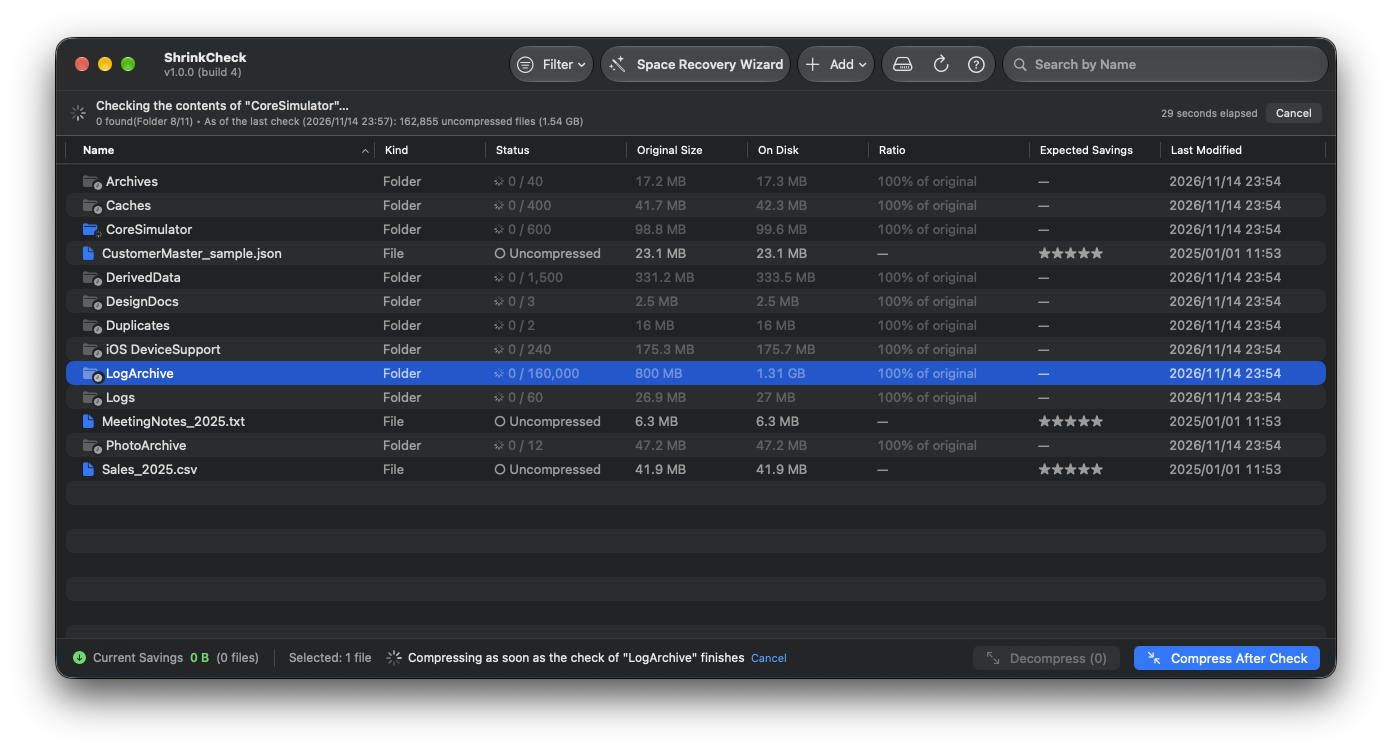
Folders that are still being checked can be queued right away. ShrinkCheck checks that folder first, then starts compressing as soon as it is done.
DerivedData, iOS DeviceSupport, CoreSimulator, Xcode Archives: all of them can be regenerated, yet they quietly take up tens of gigabytes. ShrinkCheck goes straight for these large, rebuildable folders.
DerivedData, iOS DeviceSupport, CoreSimulator, and other folders that grow large but can be rebuilt are ready as suggestions.
Because the compression is transparent, Xcode reads compressed DerivedData and simulators as usual. After every compression, ShrinkCheck reads the file back and compares it with the original.
Shipped Xcode Archives (.xcarchive bundles) can be compressed all the way down to the dSYMs and app binaries inside. Static archives shrink safely.
open -a ShrinkCheck --args --auto-recompress recompresses your registered locations without opening a window. Put it in launchd or cron to keep space free without thinking about it. Files touched in the last 30 minutes are skipped to be safe. The self-check and the stop-notice check run before each automatic run, too.
If you are switching from the old app, change the command name to ShrinkCheck. Setup examples and exit codes →
Measured with the real compression engine (LZFSE, including read-back verification) on Apple Silicon, with cold caches.
Each bar shows the compressed size. Shorter means smaller.
Real data in total, excluding already-compressed media: 13.70 MB → 1.62 MB (about 1/8 the size). Files that are already compressed, such as JPEG, ZIP, and video, do not shrink (the bottom row is the control). When ShrinkCheck finds that a file will not shrink, it leaves the file as it is.
With cold caches, reading compressed files is as fast as, or up to 1.66× faster than, reading uncompressed ones. Compression reduces actual disk I/O, so large files can even read faster (1.66× at 64 MB, 1.22× at 4 MB). For small files, per-file overhead outweighs decompression, so they read at about the same speed or slightly slower. The difference is small on internal SSDs; the slower the storage, such as external SSDs and HDDs, the more compression helps.
Designed above all not to damage your files. With layers of safeguards in place, it still handles large numbers of files at practical speed.
After a macOS or app update, ShrinkCheck checks on its own that compression and decompression work correctly. If a problem turns up after a release, only new compression is suspended. See Safety above.
Compression and decompression write to a separate inode and swap it in atomically with rename(2). Even if something crashes, the original stays intact.
Right after compressing, ShrinkCheck expands the file again and compares its hash with the original bytes. If they do not match, the original is kept and the file is skipped.
xattrs, ACLs, chflags, mode, owner, creation date, mtime, and atime all carry over from the original. Finder tags and Gatekeeper quarantine information survive the rename, too.
Files in use by other apps are never modified. They are skipped, the number of in-use files is shown when the run finishes, and each one is recorded in the history with the reason. Close the app using them and run again.
ShrinkCheck tells apart low disk space, missing permissions, read-only volumes, and unsupported volumes, and explains what happened and what to do.
DerivedData, iOS DeviceSupport, Xcode Archives, CoreSimulator, Caches, Logs, Downloads, and more: nine presets for the places developers usually want to trim first. Sizes are calculated in the background so you can see how much each could shrink.
Narrow down candidates by last modified date, size, extension, and whether they are already compressed, with live progress and the option to cancel. Add "large files untouched for N years" straight to the list.
See each item's name, kind, status, original size, actual size on disk, savings, expected benefit (five stars), and last modified date. Sort and filter the list, or view just the totals for a folder without opening it. Actions live in the guidance bar at the top, the right-click menu, and the bar at the bottom. There are no per-row buttons.
Add files and folders by drag and drop or with a file picker. Duplicates and subfolders of registered folders are excluded automatically.
v1 writes with LZFSE (the sweet spot for Apple Silicon and decmpfs). Both inline (small files) and resource-fork (large files) formats are implemented compatibly with applesauce and verified to be read transparently by the kernel.
Disk speed sets the pace, so ShrinkCheck processes eight files in parallel. The app and automatic runs from the command line use the same engine. You can cancel at any time.
Even with 50,000 files, the window keeps responding. Watch the progress and cancel at any time.
Select a folder that is still being checked and click Compress After Check. ShrinkCheck checks that folder first and starts compressing automatically when it is done. You can keep working while you wait, and cancel the reservation at any time.
Checking the contents of folders is now faster and uses less memory. A DerivedData folder with 68,000 files that took over 40 seconds to check now takes about 2 seconds. Folder icons show which folders are being checked or not checked yet.
Symbolic links, hard links, files under 4 KB, and files that ShrinkCheck has already found will not shrink are marked "cannot compress" and left out of the uncompressed count.
A file made with Finder's Duplicate is an APFS clone that shares its contents with the original. Compressing it would not free any space, so ShrinkCheck lists it as "shared" and leaves it out. If the sharing ends later, the file becomes eligible again. If ShrinkCheck cannot tell, it does not compress the file, to be safe.
Identifies dataless files (DATALESS_CMPFS_TYPE) whose contents were moved off the Mac by iCloud Drive, Dropbox, OneDrive, and similar services. They are shown as evicted to the cloud, with a popover explaining what to do.
When you add an iCloud Drive or File Provider folder, ShrinkCheck first explains the risks, such as "only local space is reduced" and "resyncing removes the compression", and lets you continue or cancel.
Shows elapsed time, time remaining, speed, parallelism, and total savings, plus the app's own memory use relative to installed RAM in real time. When it finishes, a summary card highlights how much space you saved.
Records the date, operation, path, size before and after, duration, and result of each run. Filter, search, and copy as TSV in a separate log window. Old entries are cleaned up automatically by the retention policy (90 days / 10,000 entries, adjustable in Settings).
Lists mounted volumes with hardware information, file system information, mount flags, and more than 20 capability flags, and highlights whether each supports decmpfs.
After 30 days, a local notification suggests another round of maintenance. Turn it on or off and check its authorization in Settings. Nothing is sent outside your Mac.
Works with the on-device model on macOS 26 or later. Ask about a file's purpose, whether it is safe to delete, and how much transparent compression would help. Only file metadata goes into the prompt, and the answer streams in.
open -a ShrinkCheck --args --auto-recompress recompresses your registered locations without opening a window. Call it from cron or launchd for scheduled compression. Files modified in the last 30 minutes are skipped because they may still be in use. Before each run, ShrinkCheck runs the self-check and checks for stop notices. Learn more →
After compression, apps read and write files without noticing anything. The OS decompresses them automatically, so compatibility is complete.
Access to registered paths is saved as bookmarks, so you do not have to pick them again after a restart. If an item moves, ShrinkCheck follows it by resolving the stale bookmark.
The app, notifications, and command-line output are available in Japanese and English.
No analytics tags, no tracking, and no crash reports. The app's only network activity is checking stop notices and the latest version, which only downloads a public file. The app sends nothing, and you can turn the check off in Settings. See the Privacy Policy for details.
A native macOS app, distributed directly and built for current Apple Silicon Macs.
More macOS apps by the same author.